
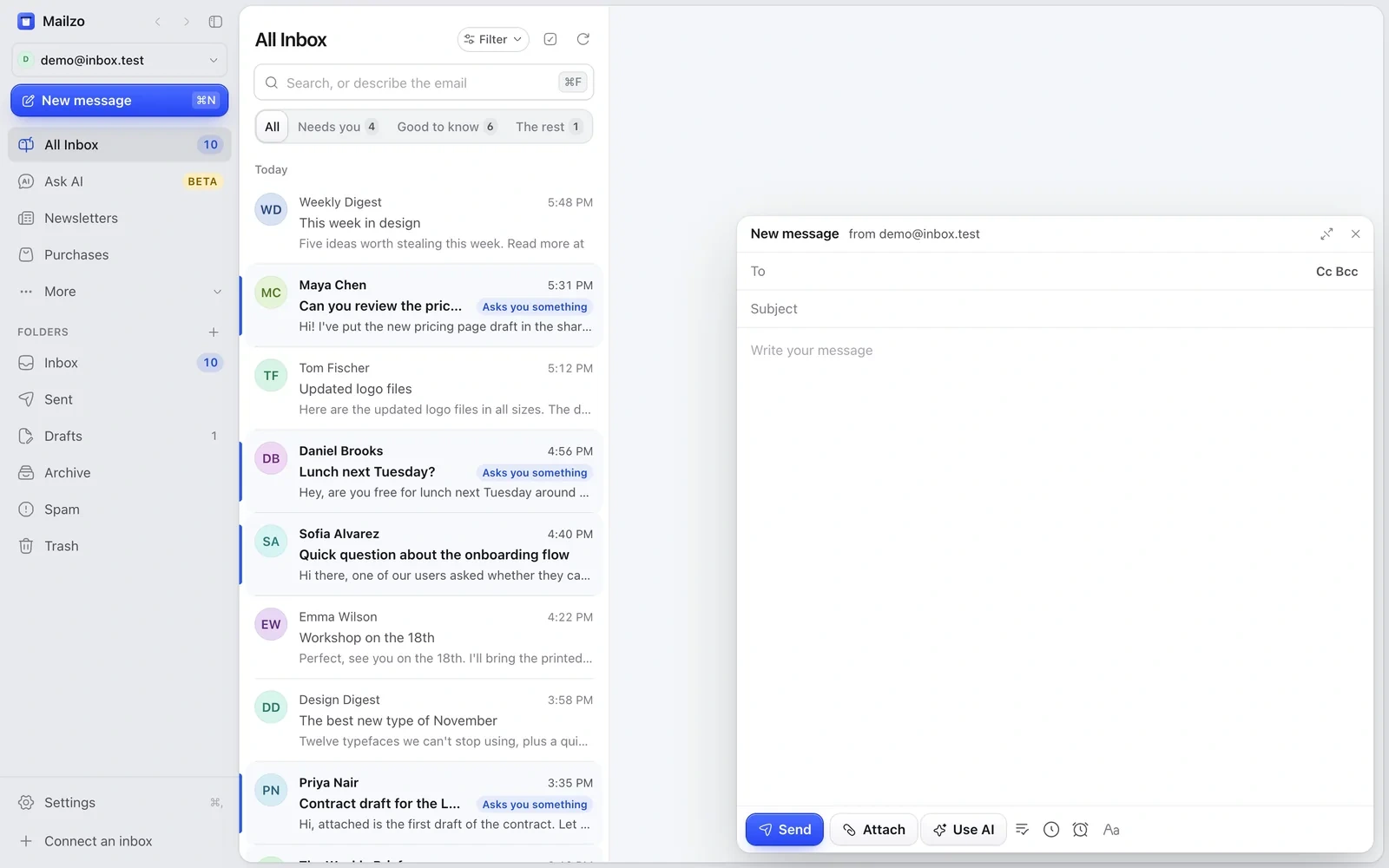
Write a new email
- Press ⌘N or click New message.
- Add who it's to. Click Cc Bcc to copy others in.
- If you have several addresses, pick which one it comes From.
- Press ⌘↩ to send.
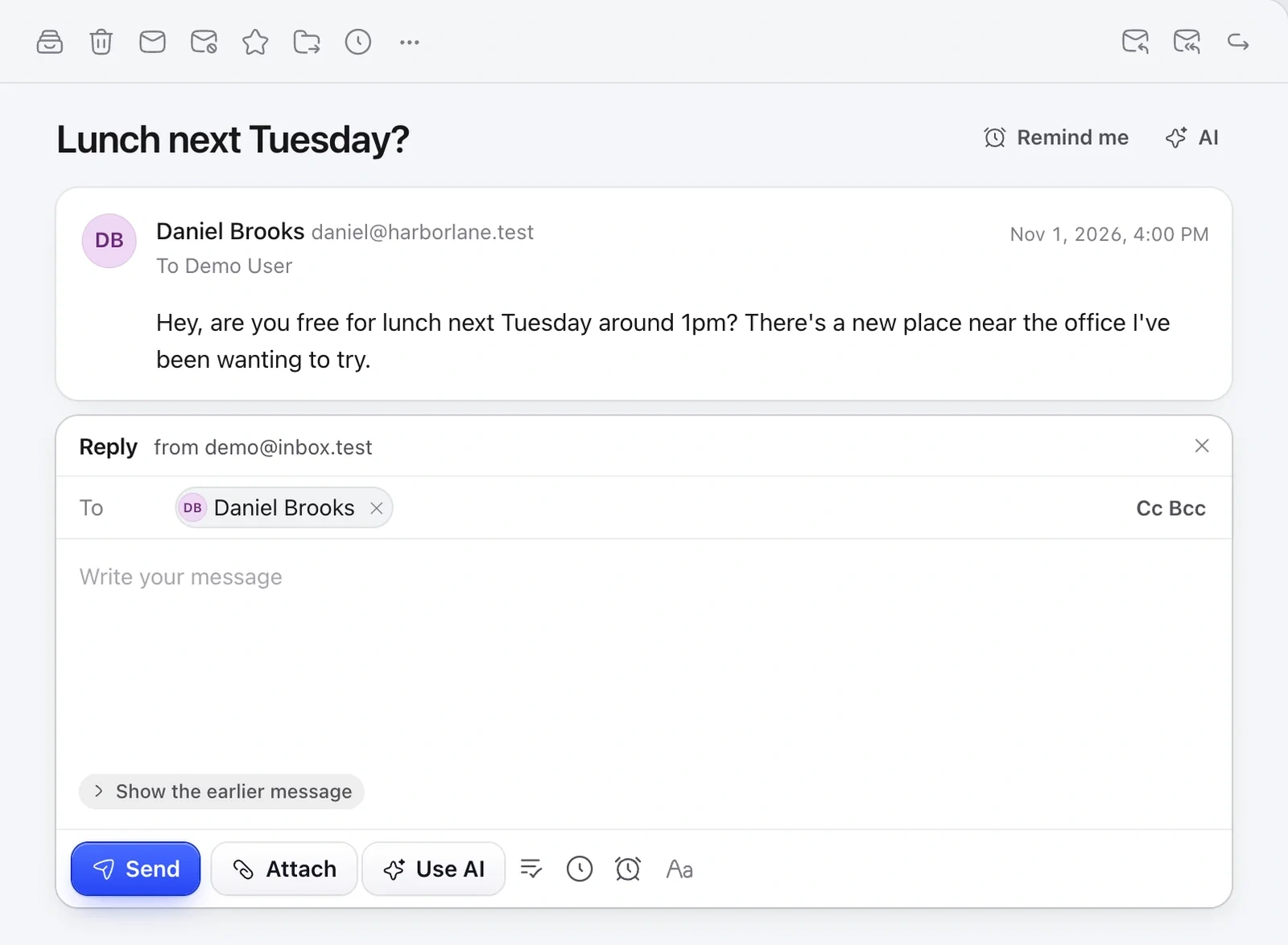
Reply and forward
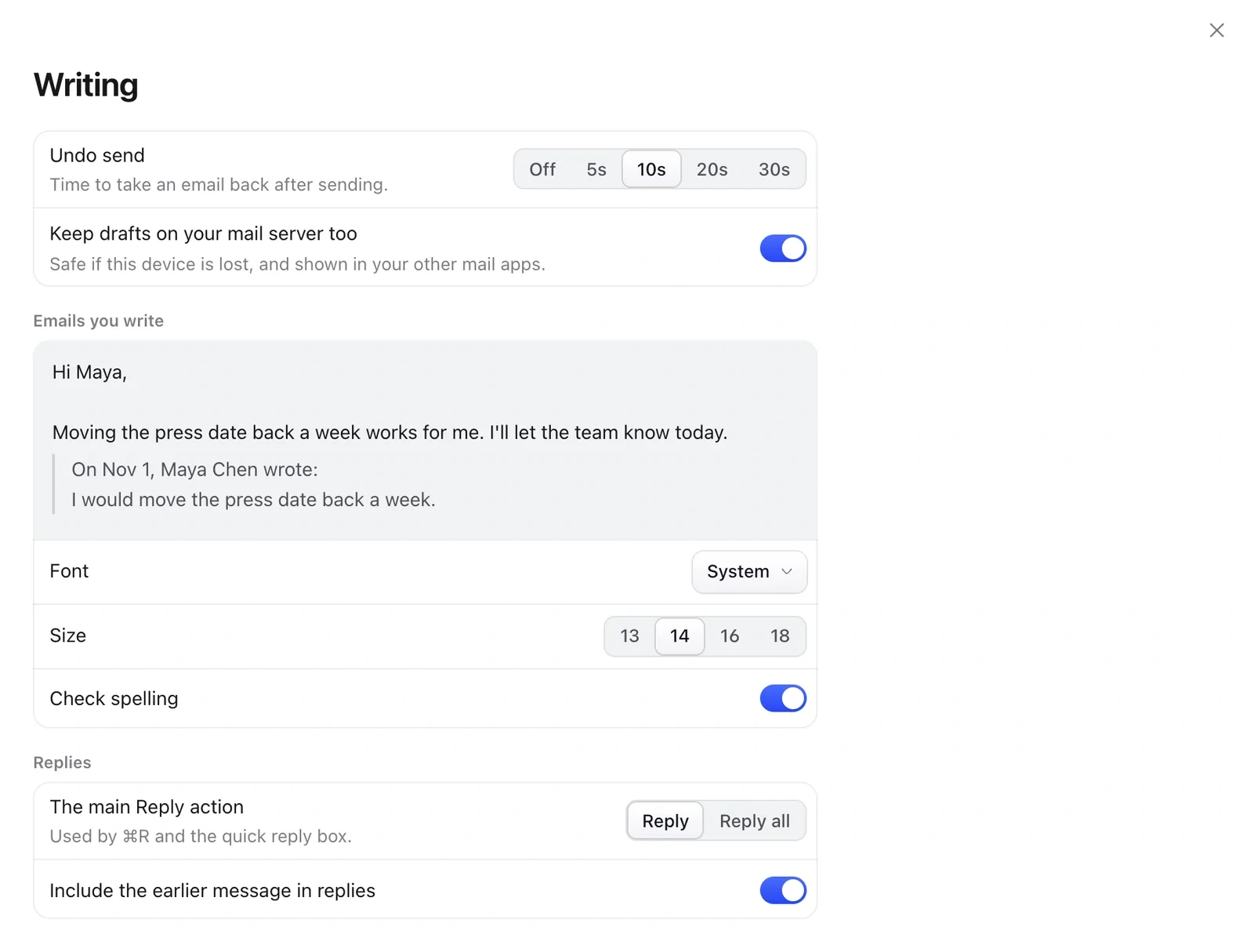
Press R to reply, A to reply all or F to forward. ⌘R uses your main reply action, which you set in Settings › Writing. Add ⇧ when sending (⌘⇧↩) to send, archive and open the next email.
Formatting, pictures and files
- Use the toolbar for bold, lists, links and colours.
- Drag in pictures (up to 5 MB each) and files.
- ⌘⇧V pastes text in your email's own style.
- If you mention an attachment but forget it, Mailzo asks before sending.
Undo send and drafts
- Open Settings › Writing.
- Under Undo send, choose how long you get to take an email back: 5 to 30 seconds.
Drafts save as you type. Press esc to close an email and keep it as a draft.
Still need help?
Write to us and a real person will reply.