
Gmail needs an app password: a separate 16-letter password just for Mailzo. Your normal Google password stays private, and you can remove the app password at any time.
Before you start
App passwords only work when 2-Step Verification is on for your Google account. Step 2 below turns it on if it isn't.
Steps
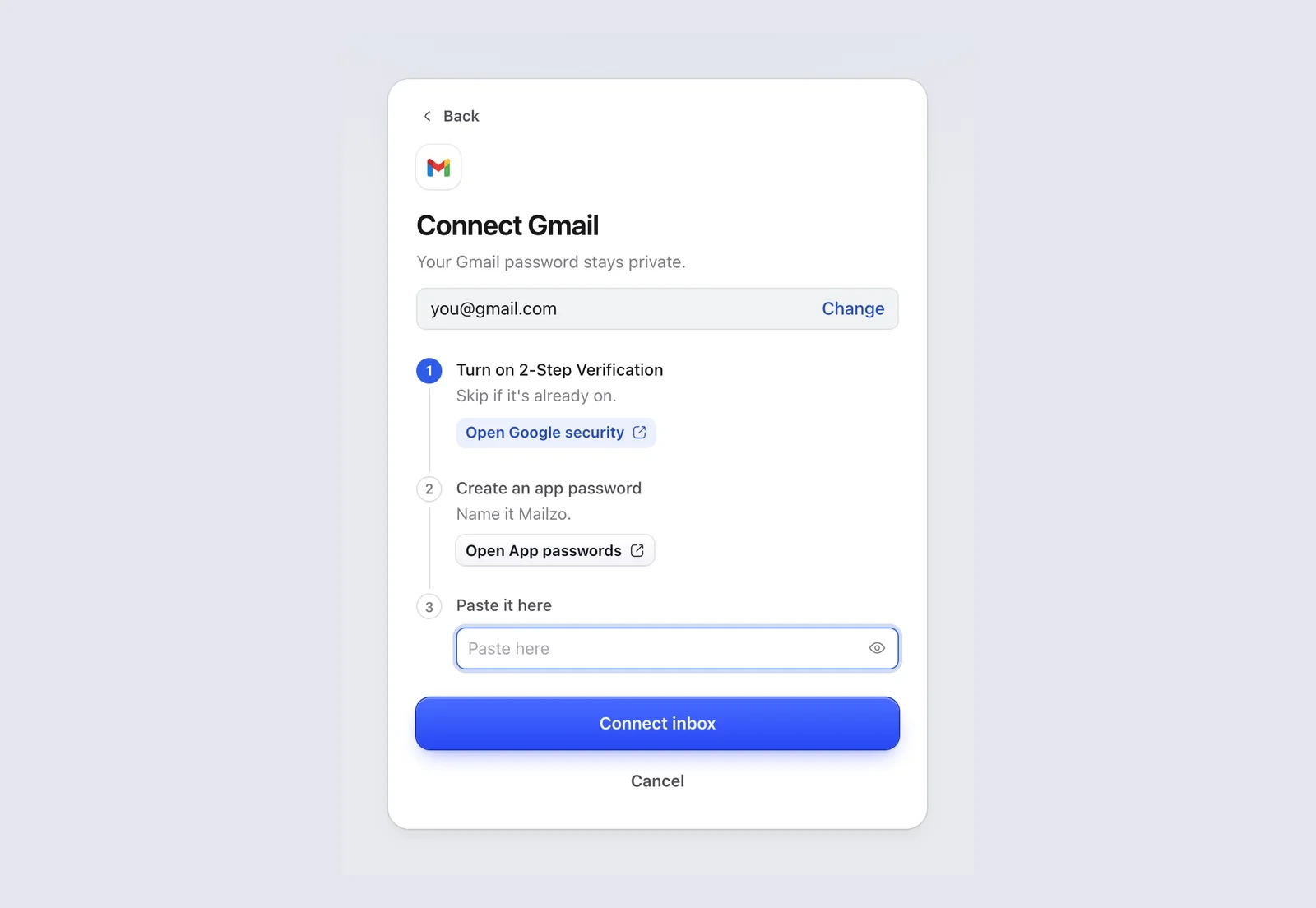
- In Mailzo, click Connect an inbox, type your Gmail address and click Continue.
- Click Open Google security in Mailzo, or go to 2-Step Verification, and turn it on. Skip this if it's already on.
- Back in Mailzo, click Open App passwords, or go to Google App passwords. Sign in to Google if it asks.
- Type Mailzo as the app name and click Create.
- Google shows a 16-letter password. Copy it.
- Paste it into Paste it here in Mailzo and click Connect inbox.
If it doesn't work
- No App passwords page: 2-Step Verification is off, or your account uses Google's Advanced Protection.
- Work or school account (Google Workspace): your admin may have turned app passwords off. Ask them to allow it.
- Password refused: make a new app password and paste it again. Don't use your normal Google password.
Remove Mailzo's access
Open Google App passwords and delete the one named Mailzo.
Still need help?
Write to us and a real person will reply.